
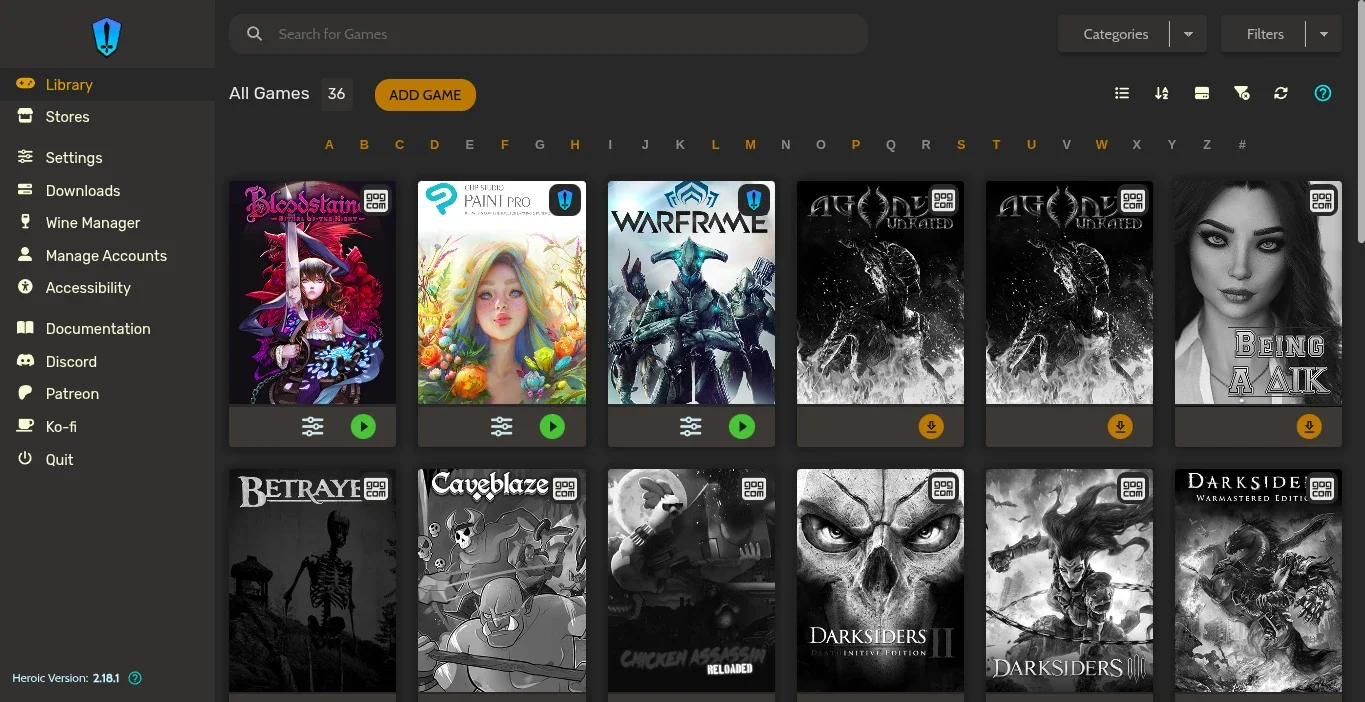
Update 2026: This article was originally for the Dev section, but now I think it fit's better here.
Hi.
While you can always install applications directly on your system and only open what you need when you need, sometimes it can be very practical to have a launcher to quickly access different app. Coming from the PC Gaming world, Steam got me very used to this: all my games on the platform are already there, non-game software is also available – and even movies, like the great Kung Fury. But launchers go beyond this base function, they are great tool to configure you apps with ease – saving your time.
And my favorite launcher nowadays, as you may notice by the image above, is Heroic Games Launcher – not only for games.
Why Heroic?
Since I fully moved back to Linux some years ago, after wasting 6 months of my life testing Windows 11, Steam has always been on my PC. But one launcher slowly gained my trust over time: Heroic. Initially to grab free games on Epic Games and GOG, when they were shown on the Free Stuff bot on a private Discord server I was with friends. Long before both Epic, then Discord, locked me out of my accounts if I did not “accept” the new Terms of Service...
Over time, as I started to actually play those free games, the launcher was showing itself to be so nice that I was starting to like it more than Steam! Different from the ones I used before (Play On Linux, Bottles), this one was always very easy to use, quite responsive, lightweight and shown excellent performance, also being gorgeous in appearance and very costumizable – at the time where Steam completely removed skins from it’s platforms.
The final push to make Heroic my favorite came with two completely different games: A Hat in Time and Warframe.
A Hat in Time got my system out of memory when I used several mods from the Workshop at once, some of them were the Devil May Cry skin pack for Hat Kid and a very cute Yukata skin. After this happened for the third time, I went for the System Monitor and saw an unbelievable amount of RAM being used by an indie game from 2017 … but also an unexpected amount being used by steam itself – more than 1.5GB. This got me curious to do some tests, in which I saw Steam always grabbing more than 1GB of RAM just to start – with no games, chat, store or anything open.
That did put a suspicion on my mind: if Steam itself is wasting resources just to launch, would it not impact performance as well, since it also has an integrated DRM in games. And here comes Warframe, where I was noticing a bad performance for what my hardware should be capable. After uninstalling the game of Steam, downloading the standalone installer, running it trough Heroic and waiting hours for my crappy Brazilian internet to download the (then) 45GB fo game files, my theory was proven right: the performance was better. There were more factors than only the launcher? Yep, and those factors also favor Heroic, but that’s a story for another day.
Update 2026: Steam is less resource hungry now, but the difference on launchers still considerable.
How to do it
0. Wine Versions
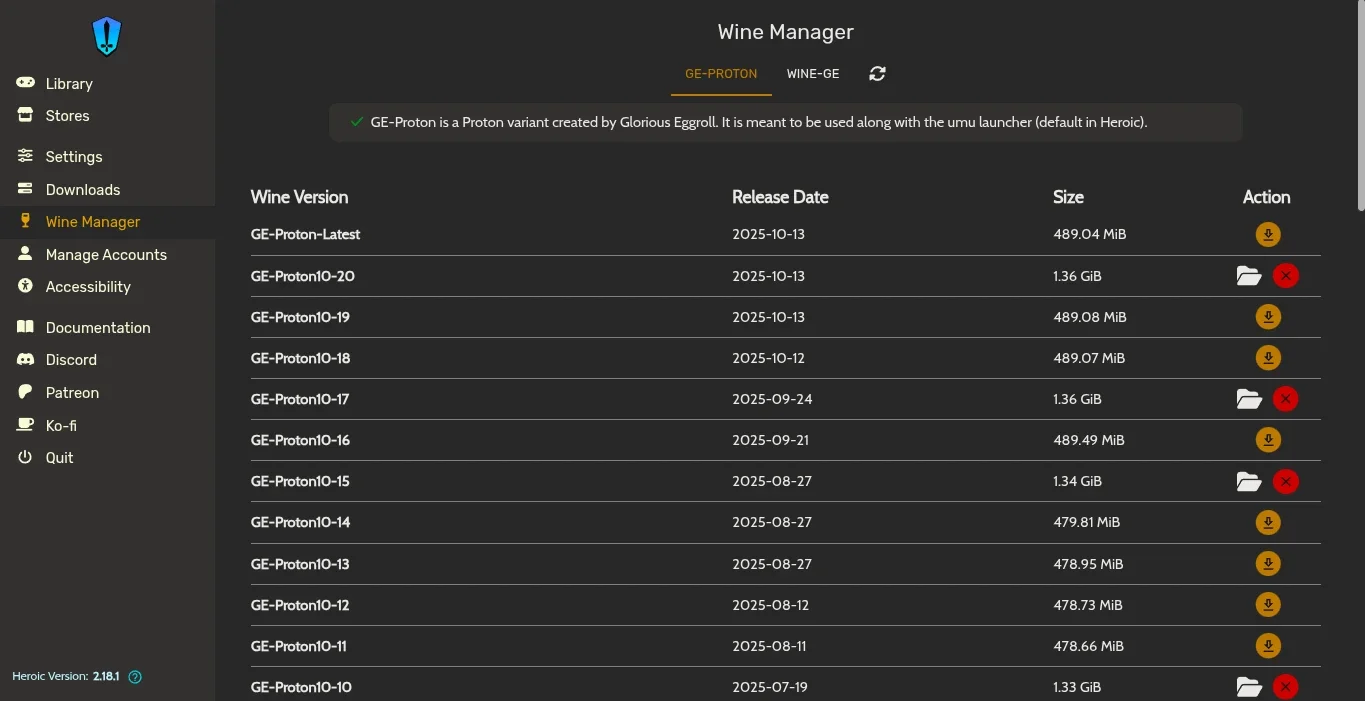
In the case of Windows Applications/Games, you might need to already have a version of Wine installed on Heroic. To check if you have one, and which one if you want, just go for the “Wine Manager” tab. If you have any version of GE-Proton (more updated) installed you are good to go.
1. Library
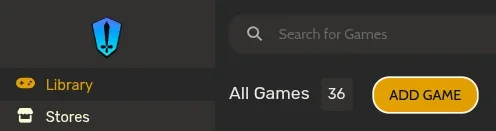
From the Library tab, just click the button Add Game:
2. Installation Dialog
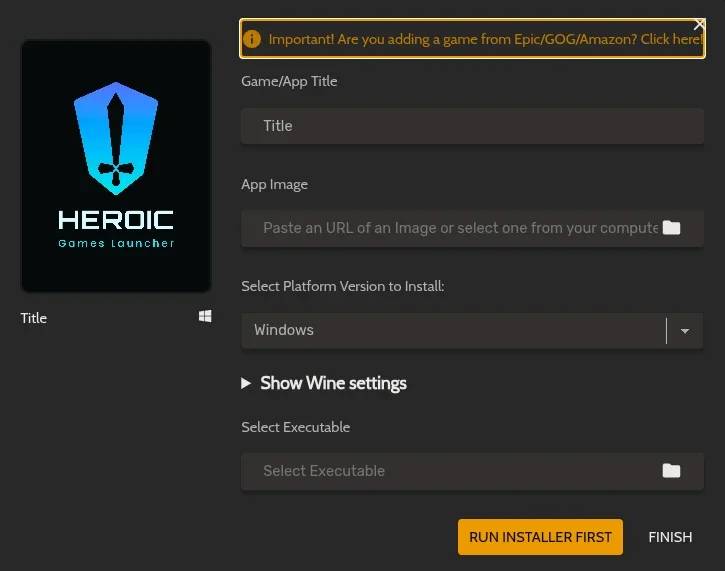
Since you are doing a manual installation, you need to type the name of the game/application. After taking focus out of the Title field a cover Image for the App will be searched automatically online, but you can set one by clicking on the folder icon if you wish.
2.1 Windows Application
By default Heroic expect you to install a Windows application by this method, but can choose a different platform in the “Select Platform Version” field. Unless you already know how to play with the “Wine Settings” section, you can safely skip it.
Then use the “Run Installer First“ button to find the installer for you application on your system. Once it is selected, Heroic will automatically create a separate container for the Application and open the installer for you to deal with.
After installing the application, use the “Select the Executable” to find the installed program on your system. The search already beings at the container of the application, to help you find it’s program path. You will need to know where the application is installed for this step, which you can easily search online for most apps and games. In case the application uses a launcher, like Warframe and Clip Studio Paint, you need to find it’s launcher program on this step.
Unless you want to install an application for a different platform, you can skip the next two sections.
2.2 Linux Application
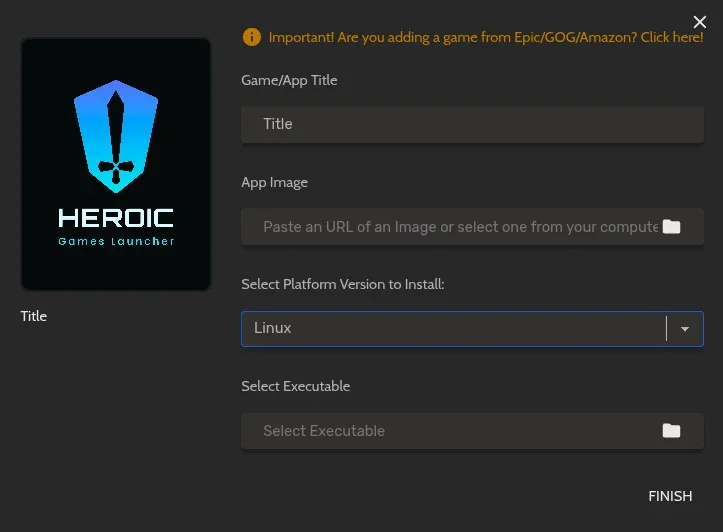
While I never tried to install native apps directly though Heroic, the steps are very similar to a Windows one, except there is no button to run a installer – so either your application runs directly from the executable file (portable) or is already installed in the system.
Unless you want to install a web application, you can skip the next section.
2.3 Web Application
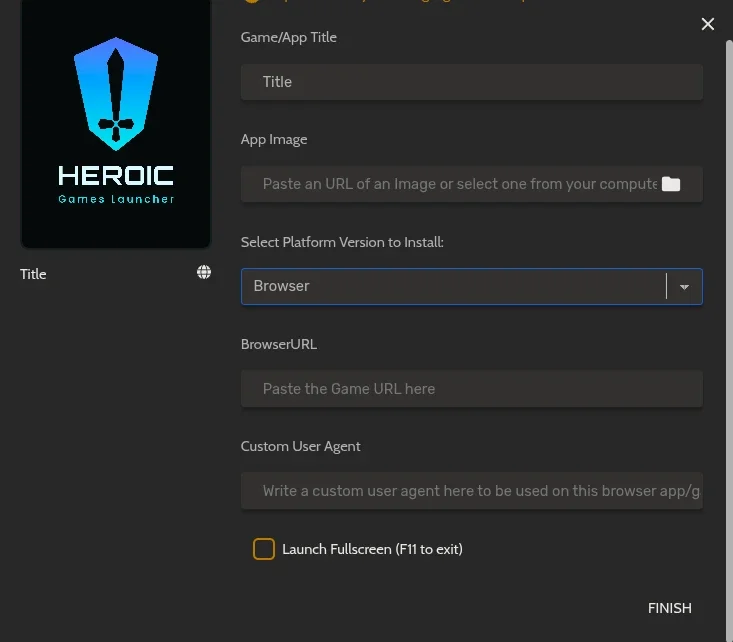
Instead of selecting an installer or executable file, for web you must insert the URL of the Application. If you don’t know what is a “Custom User Agent”, you can skip this field – but should really reconsider installing a Web Application without understanding how one works in first place.
2.4 Finish button
Once you click on Finish, the Installation Dialog will be closed and you new application entry will be waiting for you on Heroics Library. It will have the same layout as every other game/app, with the options to configure or launch bellow the Image, but showing Heroic icon on the top right corner.
You can always right click any application entry to change settings, set categories or uninstall. As easy as it gets.
Final thoughts
While installing applications manually on Heroic is quite easy, of downloading it from a store you have a connected account account will be even easier – just the click of one button. But having both options very accessible still nice. Even with this launcher being focused in games, other applications run fine on it. Honestly, a lot better depending on the application.
Hope this tutorial was useful to you, until next time! :3